How to Turn a 16:9 Landscape Video into 9:16 Vertical
Three ways to convert horizontal 16:9 widescreen footage into 9:16 vertical video for TikTok, Shorts, and Reels with Fit, Fill, or Blur.
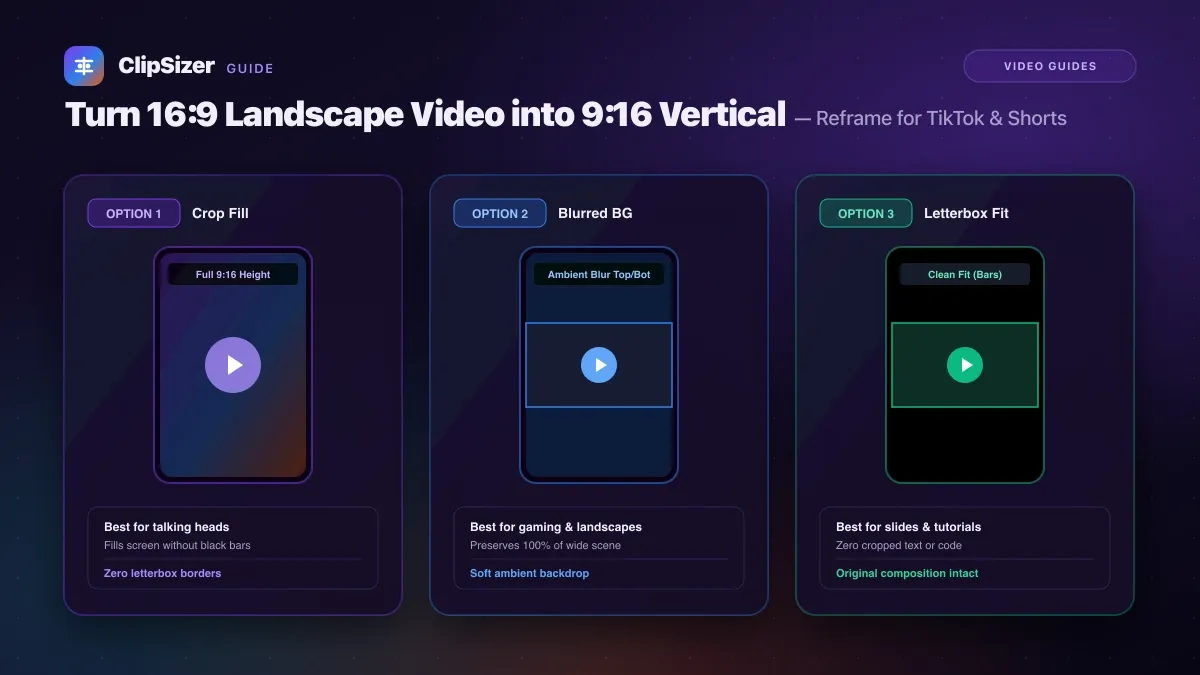
To convert a horizontal 16:9 landscape video into a 9:16 vertical video for TikTok, Instagram Reels, or YouTube Shorts, reframe your 1920 × 1080 clip into a 1080 × 1920 canvas using one of three framing techniques: Crop Fill, Background Blur, or Letterbox Fit.
Because 16:9 widescreen and 9:16 vertical are exact inverse aspect ratios, you cannot simply stretch the video without severely distorting people, faces, and text. Choosing the right reframing strategy depends on your content type and visual subject matter.
The three ways to reframe horizontal footage
Here is how the three standard conversion methods compare when converting a widescreen clip to full-screen vertical:
| Method | What it does | Best used for | Trade-off |
|---|---|---|---|
| Crop Fill | Zooms in to fill the entire 9:16 height, cropping the left and right sides | Single-subject clips, talking-head videos, focused highlights | Cuts off roughly 60% of horizontal peripheral width |
| Background Blur | Places original 16:9 clip in the center over a blurred, enlarged copy of itself | Gaming footage, wide scenic landscape shots, tutorials | Blurred top and bottom areas may distract from central action |
| Letterbox Fit | Shrinks the 16:9 video to fit the full width, leaving black bars top and bottom | Presentations, charts, cinematic trailers with text overlays | Black bars look less native in vertical mobile feeds |
Choosing the best option for your clip
When to use Crop Fill
If your video features a single presenter, speaker, or subject who remains mostly in the middle third of the horizontal frame, Crop Fill delivers the most polished, native mobile feel. The subject occupies the full vertical viewport without black borders.
When to use Background Blur
For video game captures, software walkthroughs, or sports events where wide action is happening across the entire horizontal field of view, cropping the sides will lose essential gameplay HUD elements or player movements.
Adding an aesthetic Gaussian Background Blur maintains the complete original widescreen video intact in the center, while eliminating harsh black bars with smooth, content-matched ambient colors.
When to use Letterbox Fit
If you are repurposing educational slides, multi-column code demonstrations, or subtitled content that reaches from edge to edge, Letterbox Fit preserves every pixel of the original composition without cropping or background distortion.
How to convert your clip in seconds
With ClipSizer’s in-browser converter, you can select your 16:9 clip, toggle between Fill, Fit, and Blur, preview the result live, and export a clean 1080 × 1920 vertical MP4 immediately without uploading your video to any remote server.